 Block Scene group
Block Scene group
Block Scene groupWith this control element the user puts together his own scenes: he creates scenes such as “Cinema” or “All off”, selects lights, blinds and other elements from the rooms of the visualization for them and decides which value each element gets. A tap on the name triggers the scene.
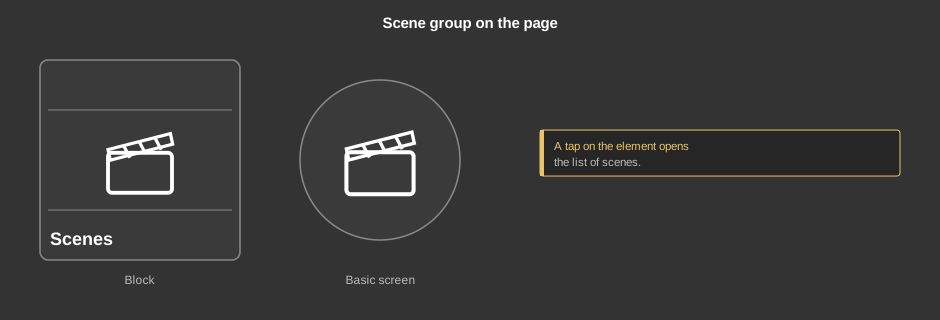
A tap on the element opens the list of scenes – on the tile as well as on the circle (basic screen).
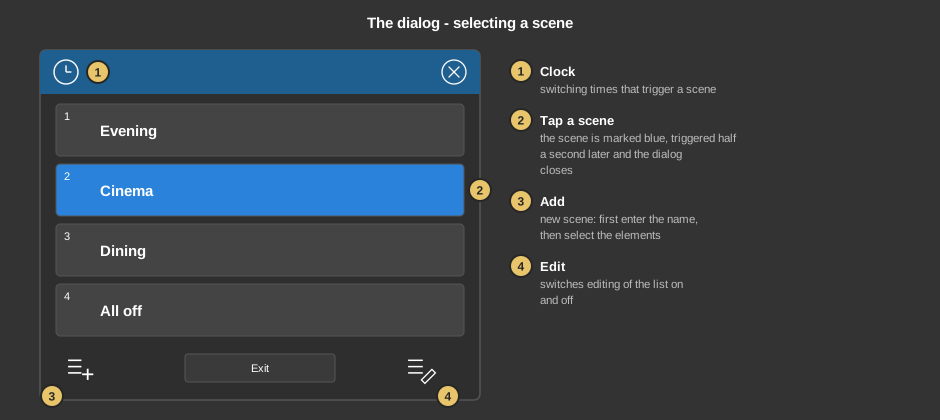
The button in the middle reads Exit; if something was changed, it reads Save and applies the changes.
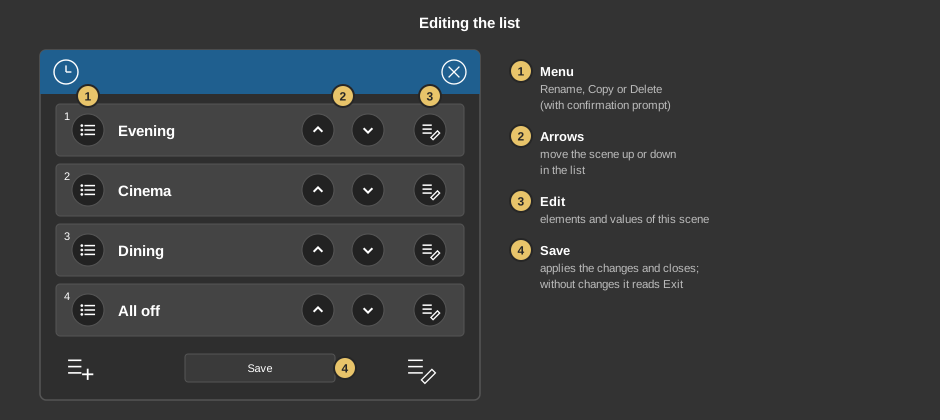
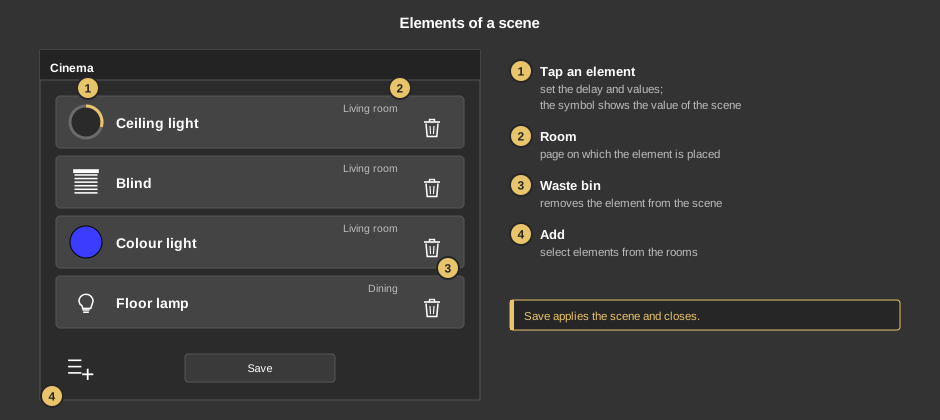
Save applies the scene and closes the list.
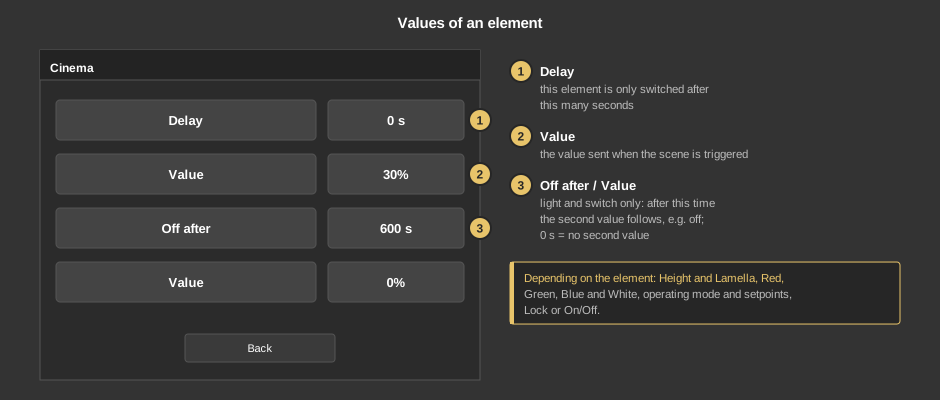
Which values an element has depends on its type:
Back returns to the list of elements.
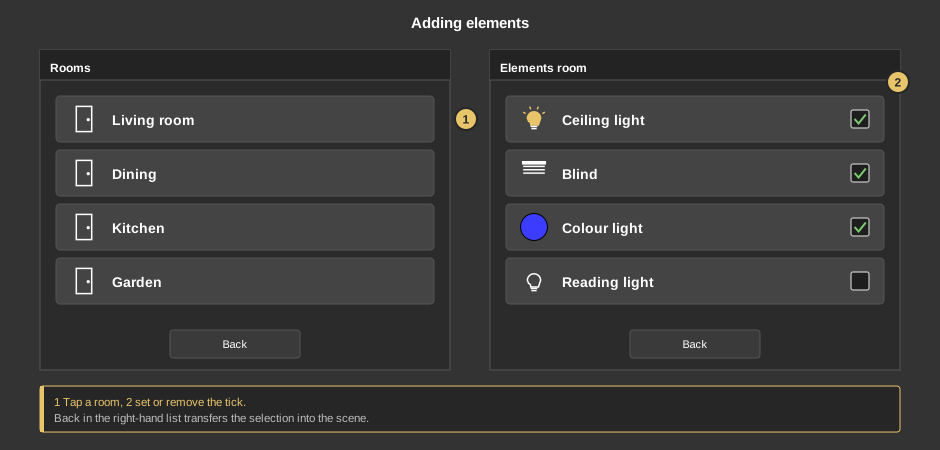
First the rooms appear, i.e. the pages of the visualization that hold suitable elements. A tap on a room shows its elements; the tick on the right adds an element to the scene or removes it. Back applies the selection and returns to the rooms; there Back returns to the elements of the scene.
When the selection is applied, elements that were already in the scene keep their values and delays. Only newly selected elements are added, deselected ones are removed.
Behind the clock are switching times; for each of them you select which scene it triggers. This element has no behaviour on presence. Everything else about switching times is described under Presence.
This section is meant for the installer of the system.
The control element is linked to the function block Block Scene group: first create the function block including its addresses, then right-click the control element and select the function block.
Display |
|
| View | Block (tile) or Basic screen (circle). The third choice List(deprecated) comes from older projects and should no longer be used. |
| Text | Caption of the tile. Its size scales with the element, a line break is inserted with \n, at most two lines. |
Tip: If the background is deselected at the transparency, the basic screen only shows the symbol. This makes it easier to lay the element over another one.
All addresses sit at the function block.
See also General properties of all control elements.