 Block Shading
Block Shading
Block ShadingThis control element controls the automatic shading of a whole group of blinds – for instance all windows on one side of the house. When the sun shines onto that side, the blinds move together to a protective position against glare and heat; when the sun moves on, they return. Brightness and room temperature can be taken into account as well.
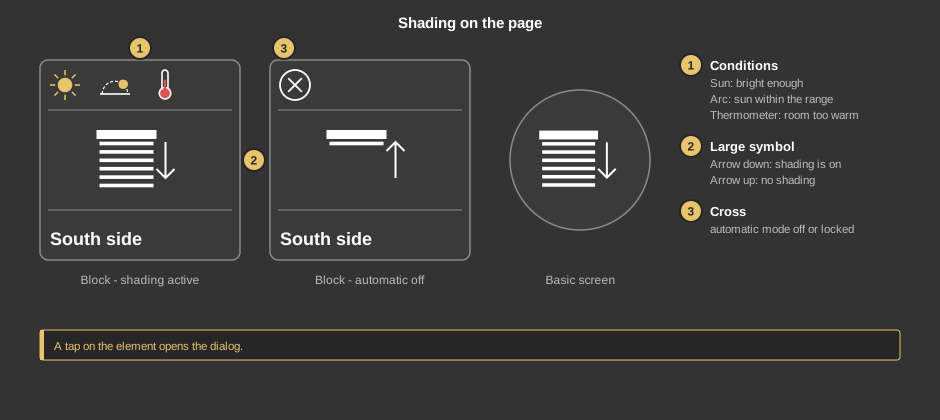
A tap on the element opens the dialog. As a circle (basic screen) it only shows the large symbol, with a cross at the top right when the automatic mode is off.
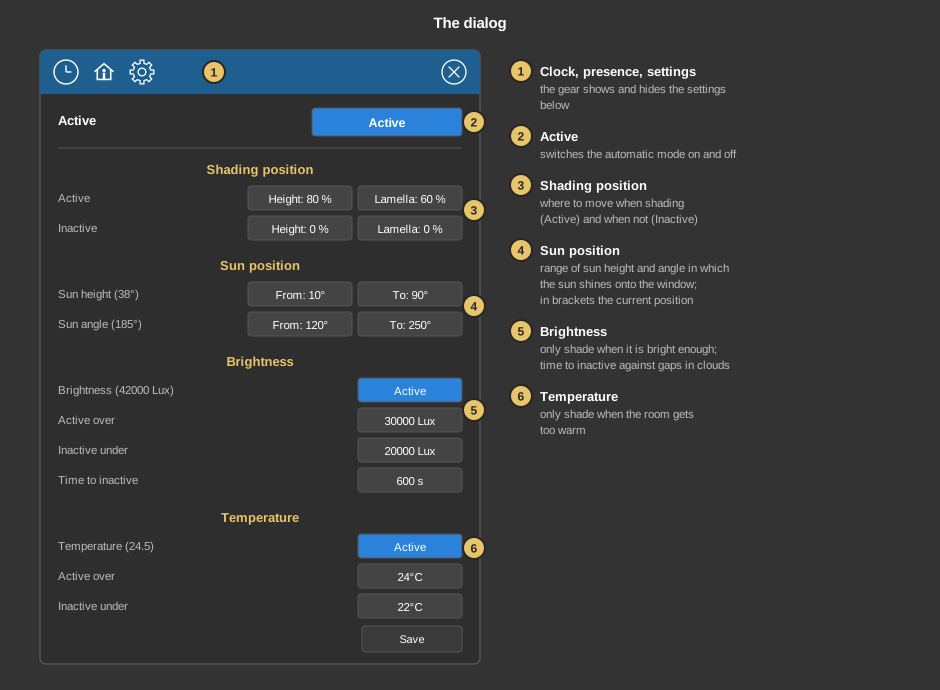
At first the dialog only shows the row Active. The gear shows and hides the settings below it; they are longer than the screen and are moved by dragging.
Save applies the settings.
Behind the clock are switching times that switch the automatic mode on or off – Active or Inactive is chosen as the value, for instance switching on at 8 in the morning. Everything else about switching times is described under Presence.
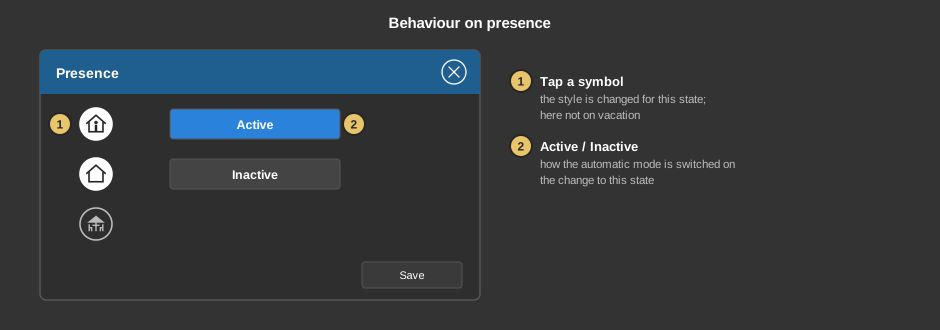
Behind the house it is set what happens when the presence changes. A tap on a symbol selects whether switching takes place at all for this state; next to it is whether the automatic mode then becomes Active or Inactive. In the example it is switched on when coming home and off when leaving the house, a vacation changes nothing.
This section is meant for the installer of the system.
The control element is linked to the function block Block Shading: first create the function block and its addresses, then right click on the control element and select the function block. Without a link a tap on the element points this out. See also Presence.
The function block has one output for height and one for lamella for every blind of the group; their number is set there. These outputs are connected to the setpoints of the blinds. The block calculates the position of the sun from the coordinates of the project. Whether the blinds stay where they are or move to the position Inactive when the automatic mode is switched off or locked is also set at the function block (Action on inactive, Lock action).
Each blind keeps its own control element Block Roller shutter/Blinds as well, which brings its own shading for a single window. Shading via this control element is suitable when several blinds are to move together.
Display |
|
| Scene selection | Sets whether the element is offered for selection in the control element Block Scene Group. |
| View | Block or Basic Screen. The third choice List (deprecated) comes from older projects and should no longer be used. |
| Text | Caption of the tile. Its size scales with the element, a line break is inserted with \n, two lines at most. |
All addresses sit at the function block. The temperature settings only appear in the dialog when its input Temperature is linked there.
See also General properties of all control elements.