 Block switch
Block switch
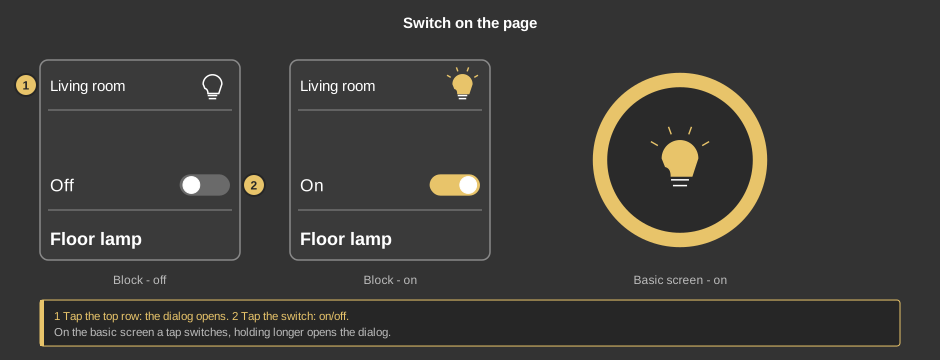
Block switchThis control element switches something on and off – a light, a socket, a pump. On top of that it offers switching times, the behaviour on presence and absence, a presence simulation and an operating hours counter.
In the new block design the tile looks like this:
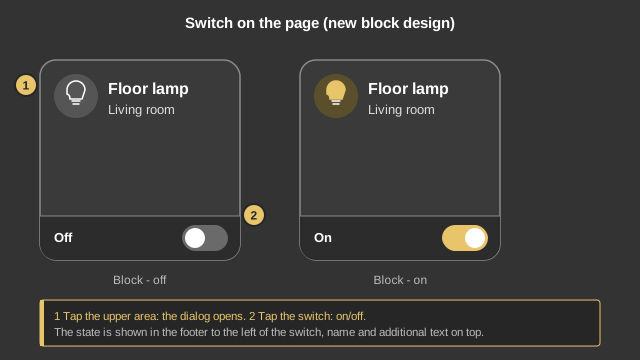
A tap on the switch turns it on or off, the symbol at the top shows the current state. A tap on the top row opens the dialog. If the element appears as a circle (basic screen), a short tap switches, holding it longer opens the dialog.
Depending on the setup the switch can also work as a push button: then it is only on as long as the finger rests on it – for a door opener, for instance.
In the new block design the state (On/Off, with the set texts) is shown in the footer to the left of the switch; the header shows the name and, if entered, the additional text. On small tiles without footer and for the push button the state is shown below the name.
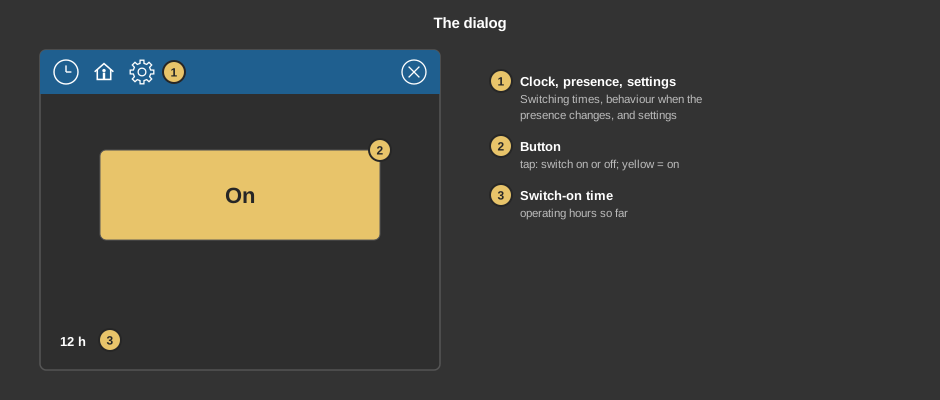
The clock leads to the switching times – for instance switching the outdoor lighting on every evening, optionally only once it gets dark. The house holds what should happen when the presence changes, for example switching off when leaving the house. Both are the same for all Block control elements and are described in detail under Presence.
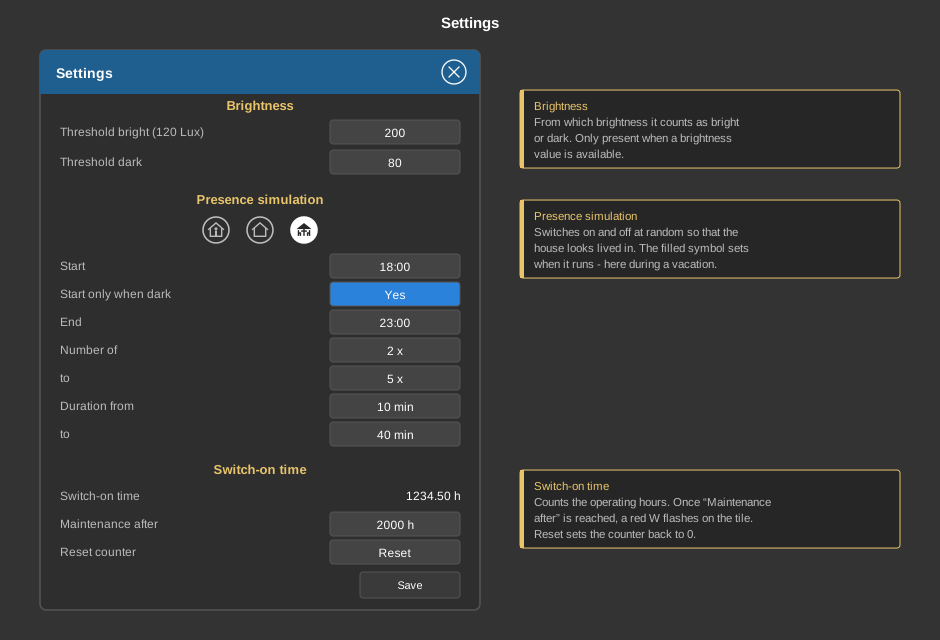
The gear opens the settings. Save applies them.
| Brightness | Sets from when it counts as bright or dark: Threshold bright and Threshold dark, each in lux. The brightness currently measured is shown in brackets. The threshold applies to all settings of this element in which “If bright” or “If dark” can be chosen. The section only appears when a brightness value is available. |
| Presence simulation | Switches on and off at random so that the house looks
lived in. The three symbols select in which state it runs –
usually vacation.
|
| Switch-on time | Switch-on time shows the accumulated operating hours, Maintenance after the hours after which maintenance becomes due. Reset sets the counter back to 0 after a confirmation. |
This section is meant for the installer of the system.
Tip: If the transparency is 0, a tap anywhere on the element opens the dialog – this way the element can be laid invisibly over an image.
Display |
|
| Scene selection | Sets whether the element is offered for selection in the control element Block Scene Group. |
| Page change status | If ticked, the element reports its state to the Block goto page, which then shows how many lights are on on the target page. Remove the tick for switches that are not a light. |
| View | Block (tile with switch) or Basic screen (circle with symbol, for instance for a floor plan). |
| Text top | Text in the top row. Empty: no text. |
| Text bottom | Caption at the bottom of the tile. Its size scales with the element, a line break is inserted with \n, two lines at most. |
| Text switch on / off | Caption next to the switch, default “On” and “Off”. The text matching the feedback Status switch is shown. |
| Switch type | What is sent when the switch is tapped:
|
| Value on / Value off | The values to send for the types with “value”, with one decimal place. Only visible when the selected type needs them. |
Image status |
|
| Type icon |
|
| Symbol / Symbol on / Symbol off | Only in the new block design. With the type Standard(internal) one symbol that replaces the light bulb; with On/Off one symbol each for on and off (if symbol off is empty, the symbol for on applies). You choose a program symbol or an SVG graphic imported into the project (see Block Menu Bar, section „Your own graphics (SVG) as symbol“). The symbol is coloured to match the style and the switching state. The button x removes it. Empty: light bulb. In the new block design a type Theme or On/Off without graphics entered is changed to Standard(internal) automatically when loading. |
| Graphics | The two graphics for the selected type icon – with On/Off the fields are called On and Off, with Theme Icon Theme light and Icon Theme dark. With Default(internal) they are omitted. |
| Zoom | Size of the graphic in percent (1 to 200). Not with Default(internal). |
With the variant Operation presence all addresses sit at the function block. With the variant Standalone the following are linked at the control element:
| Switch | Sent when the switch is tapped, the value depends on the Switch type. |
| Status switch | Optional. Feedback of the actuator, it determines symbol and text of the tile. Not linked: the value sent last applies. |
See also General properties of all control elements.