 Start page
The start page is the page the APP shows after starting, after logging in and
when the home button is pressed. It is determined by the same rules everywhere
– in the toolbar of the APP, in the control element
Block menu bar and when logging in
and out with the control element
Block user control.
One start page per orientation
Horizontal and vertical pages have separate start pages. The search is always
made for one orientation:
- Toolbar, login, program start: the orientation of the device or the
APP window. In portrait format the vertical start page is searched, otherwise the
horizontal one. When the device is rotated, the APP changes to the start page of
the new orientation.
- „Home page“ entry of the menu bar: the orientation of the
current page. Whoever is on a vertical page ends up on the vertical start
page – even if the window on the desktop is wide.
How the start page is determined
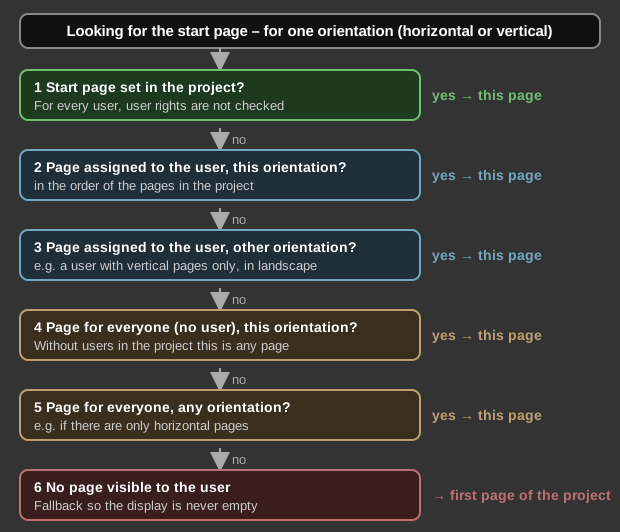
- Start page set in the project: If a start page is defined in the project
for this orientation and the page exists, it is shown. User rights are
not checked in this case: the page appears for every user, even if nobody
is logged in.
- Page assigned to the user, this orientation: If a user is logged in, the
first page of this orientation in the order of the pages in the project that
the user is assigned to in the
User administration is used.
- Page assigned to the user, other orientation: If the user has no page in
this orientation, the first page of the other orientation assigned to the user is
used. A user who is only assigned vertical pages therefore gets them in landscape
format too, for example on a PC.
- Page for everyone, this orientation: If nobody is logged in, or no pages
are assigned to the user at all, the first page of this orientation that is
linked to no user is used.
- Page for everyone, any orientation: If there is no matching page, for
example because the project only has horizontal pages, the first page for
everyone of the other orientation is used.
- First page of the project: If no page is visible to the user, the first
page is shown so that the display is never empty.
Assigned pages and pages for everyone
- If the project has no users, steps 2 and 3 are skipped. Every page then
counts as a page for everyone.
- A page that is linked to no user is visible to everyone. In the search,
however, it always comes after the assigned pages of the logged-in user.
A logged-in user therefore no longer ends up on the login page, even if it is
the first page in the project.
- If nobody is logged in, only the pages for everyone count.
When the start page is shown
- When the APP starts, as soon as the project is loaded.
- When the device is rotated or the orientation changes.
- After logging in and after logging out with the control element
Block user control. A user who logs in
therefore gets his or her own start page and not the page where somebody else was
before.
- When the controller reports a changed user list.
- When the home button in the toolbar of the APP is pressed, see
APP.
- When the Home page entry in the control element
Block menu bar is tapped.
Last page and call via an address
When starting and when rotating there is one special case: if no start page
is set and the project has no users, the APP opens the page shown last for
the respective orientation again. The home button and the menu bar entry, however,
always go to the start page. If the APP was called via an address with a page
specification, see APP, this page takes precedence over the
start page.
Testing in the Studio
In the User administration dialog the
button Test start pages... shows which page the APP ends up on. The table has
one row per user plus a row (not logged in), and one column for
Portrait and one for Landscape. Each cell names the page and the rule
by which it was chosen. Cells are orange where the user has no assigned page
in this orientation or ends up on a page for everyone. The table calculates like
the APP, takes a start page set in the project into account, and also uses
assignments that have not yet been applied with OK.
Setup
This section is intended for the installer of the system.
In the Studio the start page is set in the Navigation window: right-click
the page and choose Set as start page. The page is assigned to the start
page of its own orientation; a previous start page of this orientation is replaced.
The start page of the other orientation remains unchanged. The page can be
recognised in the tree by its own symbol. If the page is deleted, the setting is
dropped. See also Visualization.
Tip: If the user administration is
used, no start page should be set. After logging in it always takes
precedence and would hide the page of the user. It is better to assign no user to
the login page and to give every user his or her own pages. Test start
pages... can be used to check this.