 User administration
Menu Project – User administration.
With the user administration one or more users are assigned to a page of
the visualization. Through the control element
Block user control
you log in on the APP and afterwards only see those pages that are
released for this user.
In the dialog users are created with + and removed again with
−. For each entry a user name and a password
are given. The user name is stored in the project, the password on the
other hand in the persistent values of the controller – because it
can also be changed at the control element and must not be overwritten
again on the next transfer.
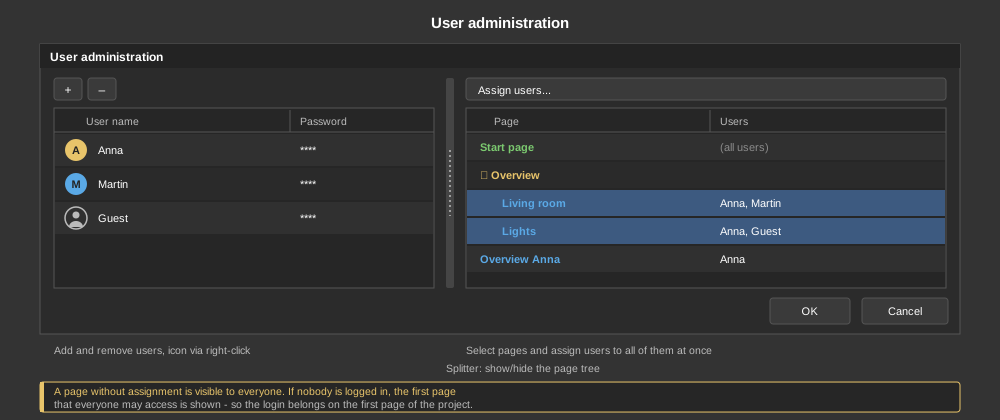
Layout of the dialog
- Users on the left: with + and − above the list
users are added and removed. Names and passwords are changed directly in the
list.
- Pages on the right: a tree with all pages and folders of the
project. The column Users shows who a page is assigned to;
(all users) means the page is visible to everyone.
- Splitter: can be moved with the mouse. Dragging it all the way to
the left or right hides one of the two lists completely – for example
the page tree when only users are being created. The window size and the
splitter position are remembered.
- Test start pages...: opens a table that shows for every user which page
they end up on after logging in, in portrait and in landscape format, see
Start page.
- OK / Cancel: below both lists. Users, icons and assignments are
only applied with OK; Cancel discards all changes.
Icon per user
Optionally, an icon can be assigned to each user: right-click the user
– Select icon.... The selection of the project graphics opens, the
same one the control element Dynamic graphic uses. With
Remove icon the user returns to the default icon. The icon is shown in
front of the name in the list and by the
Block user control for the
logged-on user. If none is selected, the default icon is shown. A graphic that
is only used as a user icon counts as in use in the image selection.
Page assignment in the dialog
In the page tree you define which users may see a page. The assignment is
maintained only here, the properties of the page no longer contain a setting for it.
Users already assigned in existing projects are kept.
- Select one or more pages (hold Ctrl or Shift). If a folder is
selected, all pages in it are included.
- Choose Assign users... (button above the tree or right-click) and
tick the desired users in the window. They are added to all selected pages;
existing assignments are kept.
- Remove users... works the other way round. Only users that occur on
the selected pages are offered.
If a user is renamed or deleted, the change is carried over to the page
assignments. Note: if a page has no user left afterwards, it is visible
to everyone again. The tree only contains visualization pages, no program
pages.
Assigning pages
The users that may access a page are selected in the dialog (see above). The
following applies:
- If no user is linked, the page is always visible to
everyone.
- If nobody is logged in, the first page is shown that all users have
access to.
- After logging in, the first page assigned to the user is shown – even if
pages that are open to everyone, such as the login page, come before it. If the
user has no page in the orientation of the device, the one of the other
orientation is used.
- If there is no such page, simply the first page of the project is
shown.
The login page is linked to no user. The exact order of the search is described
under Start page.
How it is built up
- The first page in the project is linked to no user and carries
the control element for logging in.
- For every user an own start page is created and linked to that user.
It is shown as soon as they log in.
- On this start page there are only the page jumps to those pages the
user should be able to reach – their rooms, for instance. Because
they can only get further from there, only the start page has to
be linked to the user.
Tip: If the APP is to start with a certain user right away
without logging in, there is the start parameter --logon-user, see
APP – Start parameters.
Note: If a fixed start page is also set in the project, it takes precedence
over the page of the user after logging in. How the start page is determined
is described under Start page.