 Block Style
Block Style
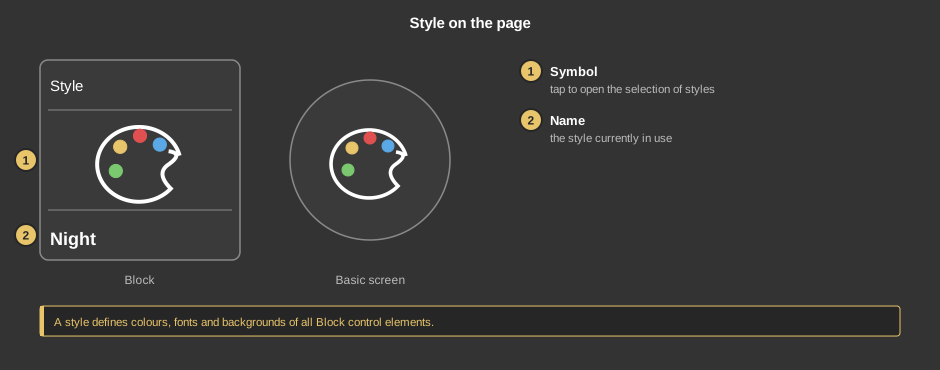
Block StyleThis control element switches the look of the visualization – for instance between a light style for the day and a dark one for the night. This works by hand, by switching times or when the presence changes. The styles themselves are created in the project, see Styles.
The element exists in two variants: Presence with function block, switching times and behaviour on presence, and Standalone without function block.
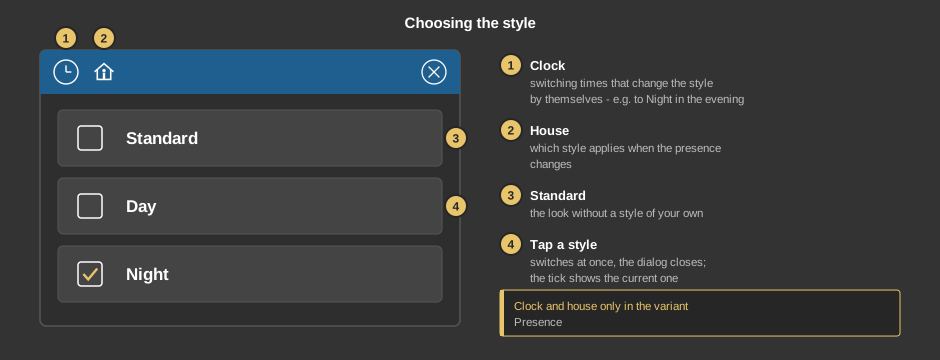
Clock and house only exist in the variant Presence; in the variant Standalone the dialog has the title “Style”.
Behind the clock there are switching times that change the style – for instance to Night in the evening and back to Day in the morning. Instead of a value the style is chosen there. Everything else about switching times is described under Presence.
With the calendar symbol in the list of switching times, switching times can be taken over from a calendar file (iCal, *.ics) – via link, from a file or from the clipboard. Each appointment creates two switching times: at the start with the value 1, at the end with the value 0 – for the style that is the second and the first style; adjust the switching times afterwards if necessary. For details of the import see Block Time switch; where the calendar links are found in the various services is described in the help of the Holiday clock.
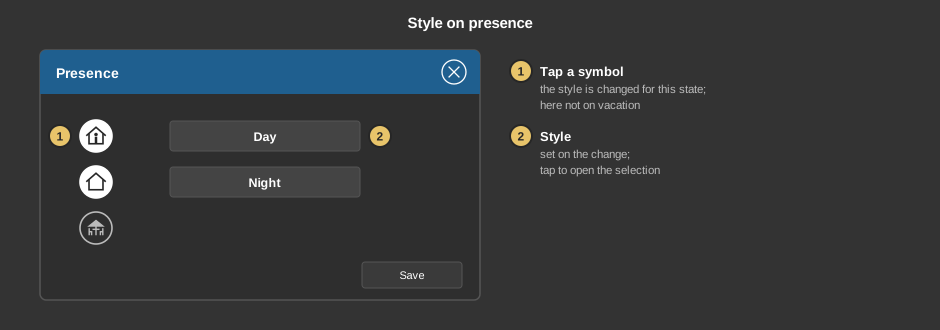
Save takes over the settings. In the example coming home switches to Day, leaving the house to Night, during a vacation the style stays unchanged.
New visualisation and app only. The gear in the title bar of the dialog opens the more settings. There every user switches the animation on or off for their own device; the value is stored in the settings of this device and applies to all pages of the project.
When on, swiping left or right makes the old page follow the finger, blurred, with the background colour of the target page behind it. Whether the page changes is decided only on release: from about a third of the page width, or with a fast swipe. Otherwise the page moves back. At the end of the page list or in front of a blocked page it follows only with resistance. A cross-fade is also used when tapping the menu bar, the footer or a page link. The blurred image of the page is prepared in idle time after each page change; if it is not ready yet or the page draws too slowly, the animation shows only the background colour.
When off (default) the page changes after about a quarter of the page width without animation. Swiping itself is always possible in the new visualisation.
This section is meant for the installer of the system.
Display |
|
| View | Block or Basic screen. The third choice List (obsolete) comes from older projects and should no longer be used. |
| Show standard | Additionally shows the entry Standard in the dialog to return to the look without a style of your own. Default off. |
Tip: If the tick Background under transparency is removed, only the symbol remains in the basic screen – that makes it easy to lay the element over another one.
| Style | Only in the variant Standalone. Optional. The number of the style: 0 is the first tab of the style administration, 1 the second and so on. Every change switches to this style, provided it is active; a value below 0 or above 19 switches to Standard. The choice in the dialog is written to the address as well, for Standard the value –1 – so all display devices follow. Not linked: the style is only switched by hand on the respective device. |
See also General properties of all control elements.