 Block Statistics
Block Statistics
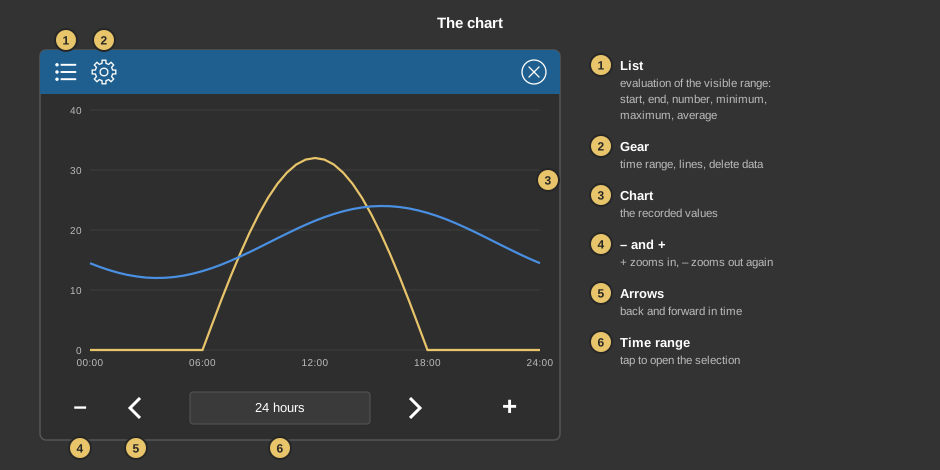
Block StatisticsThis control element shows recorded values as a chart – for instance the yield of the photovoltaics over the day, room temperatures of the last week or the consumption of a year.
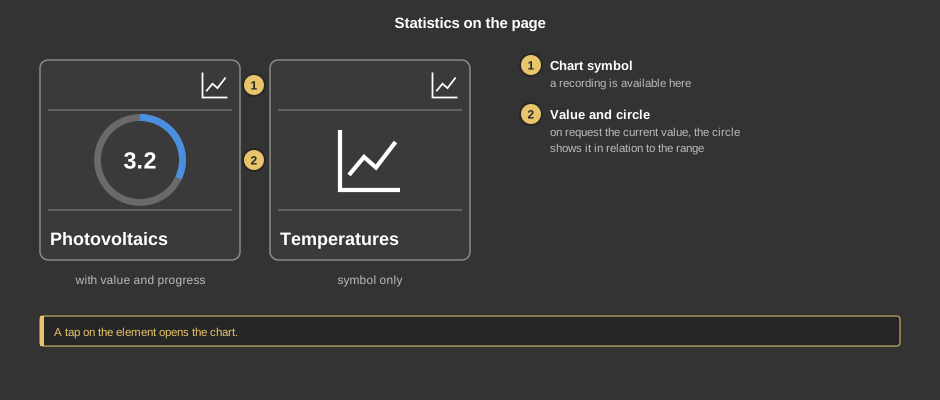
A tap on the element opens the chart.
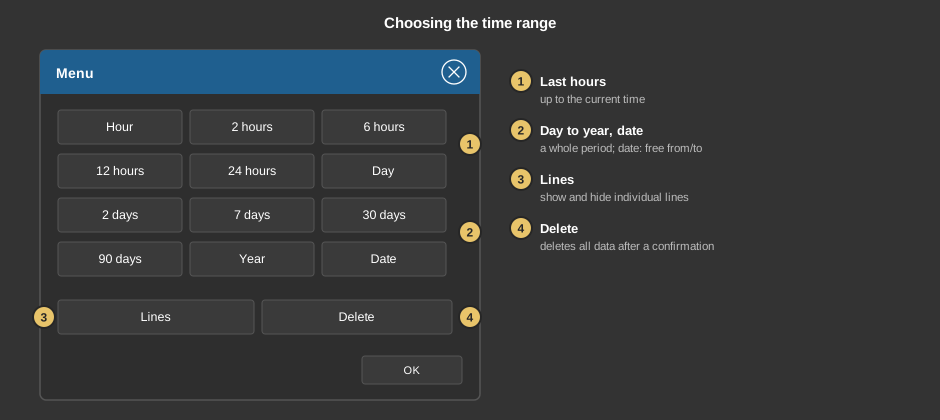
This section is meant for the installer of the system.
The control element is linked to the function block Statistics block, which records the values: first create the function block and its addresses, then right click on the control element and select the function block. Without a link a tap on the element points this out. See also the notes under Project statistics.
Display |
|
| View | Block or Basic Screen. The third choice List (deprecated) comes from older projects and should no longer be used. |
| Text | Caption of the tile. Its size scales with the element, a line break is inserted with \n, two lines at most. |
Chart |
|
| Background / Font | Colours of the chart. |
| Legend | Shows the names of the lines in the chart. |
| Scaling min. / max. | Fixed range of the Y axis. If both are 0, the axis is scaled automatically. |
| Decimal places Y | Decimal places of the Y axis labels. |
| Parameter | The button “…” opens the settings of the lines. Per line: Active (show), Name (in the legend), Type (linear, rectangle, linear+fill, rectangle+fill or bar), width and colour, plus Factor and Offset for converting the raw value. |
Progress/value |
|
| Show | Do not show (default: symbol only), Value+Progress or Value only on the tile. |
| Format | Format of the number, see Format specifications. Default %.1f. |
| Type | Linear: the circle fills from minimum to maximum. Plus/Minus: positive values fill one half of the circle, negative values the other – for grid import and export, for instance. |
| Minimum / Maximum | Range of the circle, default 0 to 100. |
| Factor | The value is multiplied by this factor, for instance 0.001 from watts to kilowatts. It affects number and circle; at 0, 1 applies. |
| Positive + / Negative - | Colours of the circle for positive and negative values. |
The recorded values come from the function block.
| Value display | Optional. Value for number and circle on the tile. Not linked: 0 is shown. |
Tip: If the tick Background under transparency is removed, only the symbol remains – that makes it easy to lay the element over another one.
See also General properties of all control elements.