 Block Code switch KNX
The code switch KNX turns an ordinary KNX push button into a code keypad,
for instance at the entrance or at the garage: each rocker stands for a
digit. For every button a function of its own with a code of its own can be
stored, for example open the door or arm the alarm system. The control
element shows whether the code switch is enabled, offers the same code entry
on the screen and is used to change the codes.
Operation
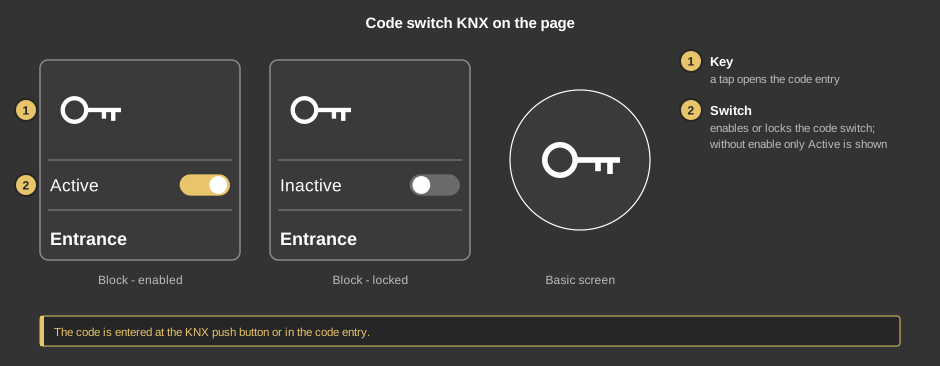
- Key: a tap on the tile opens the code entry.
- Switch: enables the code switch (Active) or locks it
(Inactive); a locked code switch accepts no code. If no enable is
set up, only Active is shown here and the code switch is always
enabled.
At the KNX push button a short press enters a digit, a long press selects
the function of this button; its LED then lights up. A correct code makes
the LED flash for a few seconds, a wrong one all LEDs. If the code is not
completed within 10 seconds, it counts as wrong.
The code entry
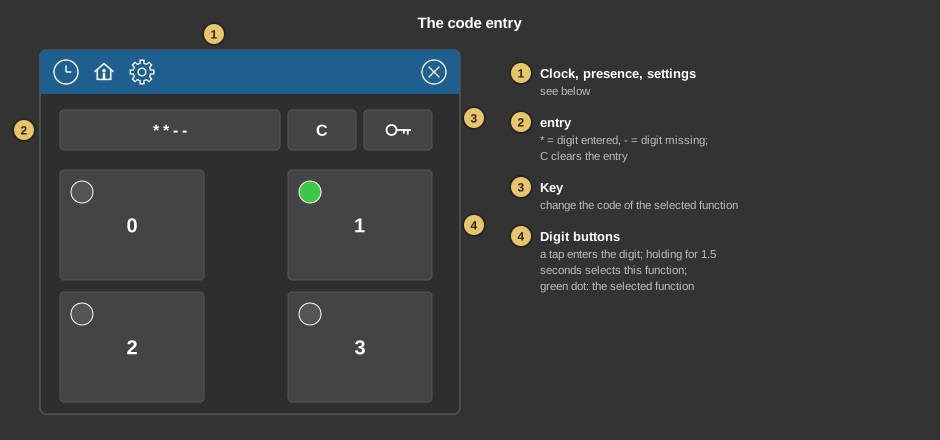
- Symbols of the title bar: clock, presence and settings, see
below.
- Entry: a * stands for each digit entered, a - for
each missing one. C clears the entry.
- Key: changes the code of the selected function. The title bar
turns yellow and asks one after the other for Password old –
the previous code or the master code –, Password new and
Password new repeat. Another tap on the key cancels.
- Digit buttons: as many as at the push button. A tap enters the
digit, holding for 1.5 seconds selects the function of this button.
The green dot shows the selected function. With the last digit the
controller checks the code by the same rules as an entry at the push
button: if it is correct, it switches and the dialog closes, otherwise
Code wrong appears. If the code switch is locked, Code switch
not enabled appears. An hourglass is shown during the check; if there
is no answer within 5 seconds, No response from controller
appears and nothing has been switched.
As long as the settings have not yet been loaded from the controller, an
hourglass is shown instead of the digit buttons.
Switching times and presence
Behind the clock there are switching times that enable or lock the
code switch – for example enabled during the day and locked at night.
Everything else about switching times is described under
Presence.
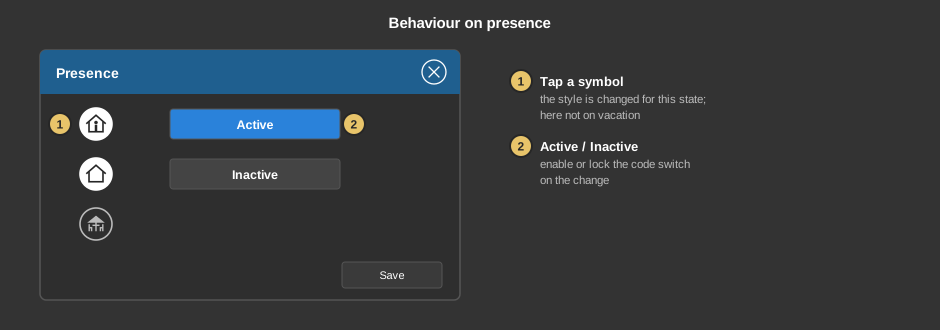
Behind the house you set whether the code switch is enabled
(Active) or locked (Inactive) when the presence changes. A tap
on a symbol selects whether switching takes place for this state at all.
Switching times and presence only act when an enable is set up.
Settings: one-time code
A one-time code is an additional code generated at random, for instance
for craftsmen or guests. It applies to every function.
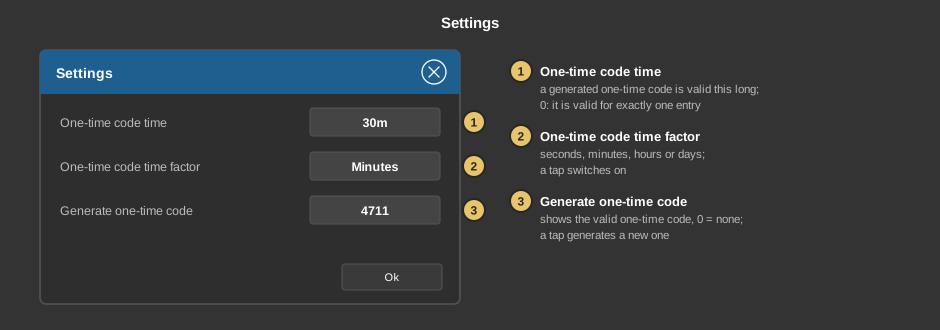
- One-time code time: a newly generated one-time code is valid this
long – any number of times during this period. At 0 it is valid until
it is used once, at the push button or in the control element.
- One-time code time factor: the unit of the time; every tap
switches between seconds, minutes, hours and days.
- Generate one-time code: shows the valid one-time code, 0 means
none. A tap generates a new one.
Time and time factor act at once, Ok closes the dialog.
Setup
This section is meant for the installer of the system.
The control element is linked to the
function block Block KNX
Code switch: first create the function block and its addresses, then
right click on the control element and select the function block. In the
same menu Take comment takes over the name of the function block as
text. See also Presence.
- Number of buttons, code length and what is sent per function on a
correct code are set at the function block. A pulse lasts
1 second.
- At first no function has a code. It is assigned with the key and the
master code – this is the parameter Reset PIN of the function
block. It is accepted with its own number of digits, even if the
code length is larger (for instance 6, 8 or 10 digits).
- Switch, switching times and presence need the address Enable at
the function block. The one-time code settings only act when the inputs
One-time code trigger, One-time code time and One-time
code time factor are linked to addresses there. If the one-time code
comes from outside via One-time code external, none is
generated.
Parameters
| View |
Block or Basic Screen. The third choice
List (deprecated) comes from older projects and should no
longer be used. |
| Text |
Caption of the tile, default Code KNX. Its size
scales with the element, a line break is inserted with \n, two
lines at most. |
Address links
All addresses sit at the
function block and are
taken over when linking.
See also General properties of all
control elements.